Star Citizen · Windows & Linux

Star Cargo Tracker

// Every trade, tracked automatically.

A free tool for Star Citizen haulers. It reads the game's log as you play and records every commodity purchase and sale: where it happened, which ship the cargo went on, and how much profit each run made.

No typing in numbers and no screenshots. Buy and sell at the terminals as usual and the tracker picks it up.

Latest release Windows 10 & 11 · Linux Free · MIT licence
STAR CARGO TRACKER in block lettering, as the program shows it when it starts

A buy and a sale, as you'll see them

Each trade appears the moment you make it, with tips from UEX market data: where a purchase sells best, and whether a sale got the best price nearby.

The tracker recording a purchase of 120 SCU of Construction Materials at Levski with UEX sell advice, then the sale at Pyro Gateway (Nyx) for 434,159 aUEC profit
Buying Construction Materials at Levski, then selling at Pyro Gateway for +434,159 aUEC.

What it does

Everything runs on your PC. Market data and UEX syncing are optional extras.

Automatic trade tracking

Every buy and sell is recorded live from the game's log, with the location and the ship the cargo was loaded on. Failed trades are kept separate.

Profit per run

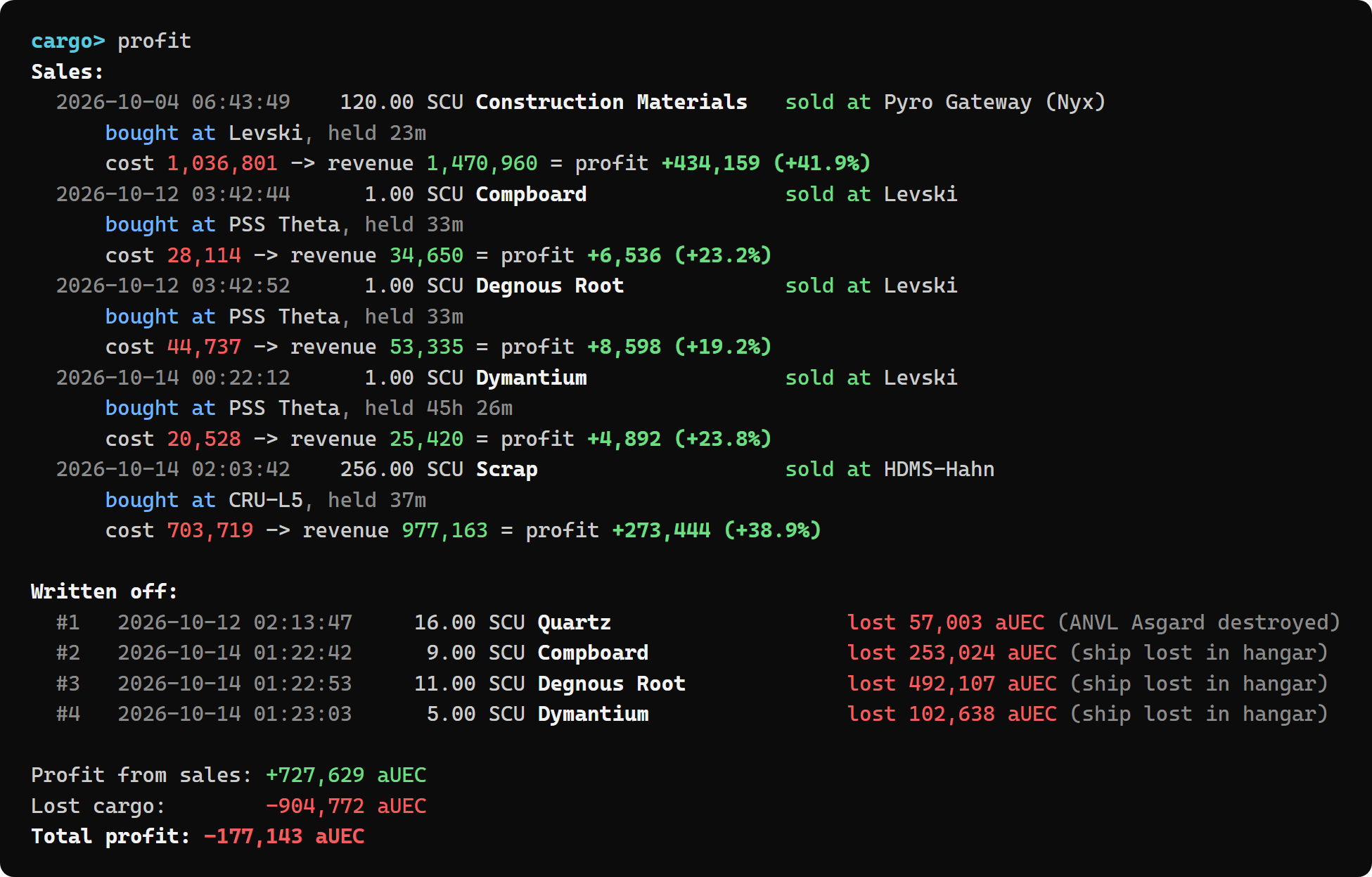
Each sale is matched to the cargo it came from to show cost, revenue, profit and margin, plus what you're still holding.

Lost cargo written off

If your ship is destroyed with you aboard, its cargo is written off as a loss automatically. Other losses can be recorded by hand.

UEX market data

Prices and the most profitable routes from where you are, sized to your ship's cargo space and to what you can spend. It can also send your trades to your UEX wallet.

In-game overlay

A small, click-through overlay in the corner of the game shows each trade as it happens, and when it's synced to your UEX account, then fades away.

Export to Excel

Save every trade, sale, write-off and ship to a spreadsheet, one sheet each, ready to sort and filter.

Download and run

There's nothing to install: it's a single program you can keep anywhere.

  1. Download the program

    Windows: download star-cargo-tracker.exe and put it wherever you like, such as its own folder or your desktop.

    Linux: download the .tar.gz (x86-64) and extract it with tar -xzf star-cargo-tracker-linux-x86_64.tar.gz. It's built and tested on Ubuntu 22.04, so it should run on Ubuntu, Debian and similar distributions, and it may well work on others too: it has been run on Arch, for example.

    Every release is also listed on GitHub.

  2. Start it

    On Windows, double-click it. On Linux, run ./star-cargo-tracker in a terminal, inside the extracted folder. It finds your Star Citizen install by itself, or asks for the folder once and remembers it. On Linux it looks inside your Wine prefixes, such as the LUG Helper's ~/Games/star-citizen.

    The Windows program isn't code-signed, so Windows may show "Windows protected your PC" the first time. Click More info, then Run anyway. If you'd rather check the file first, compare its fingerprint with the one below.

  3. Play and trade

    Buy and sell at commodity terminals as usual. Each trade appears in the tracker's window as it happens.

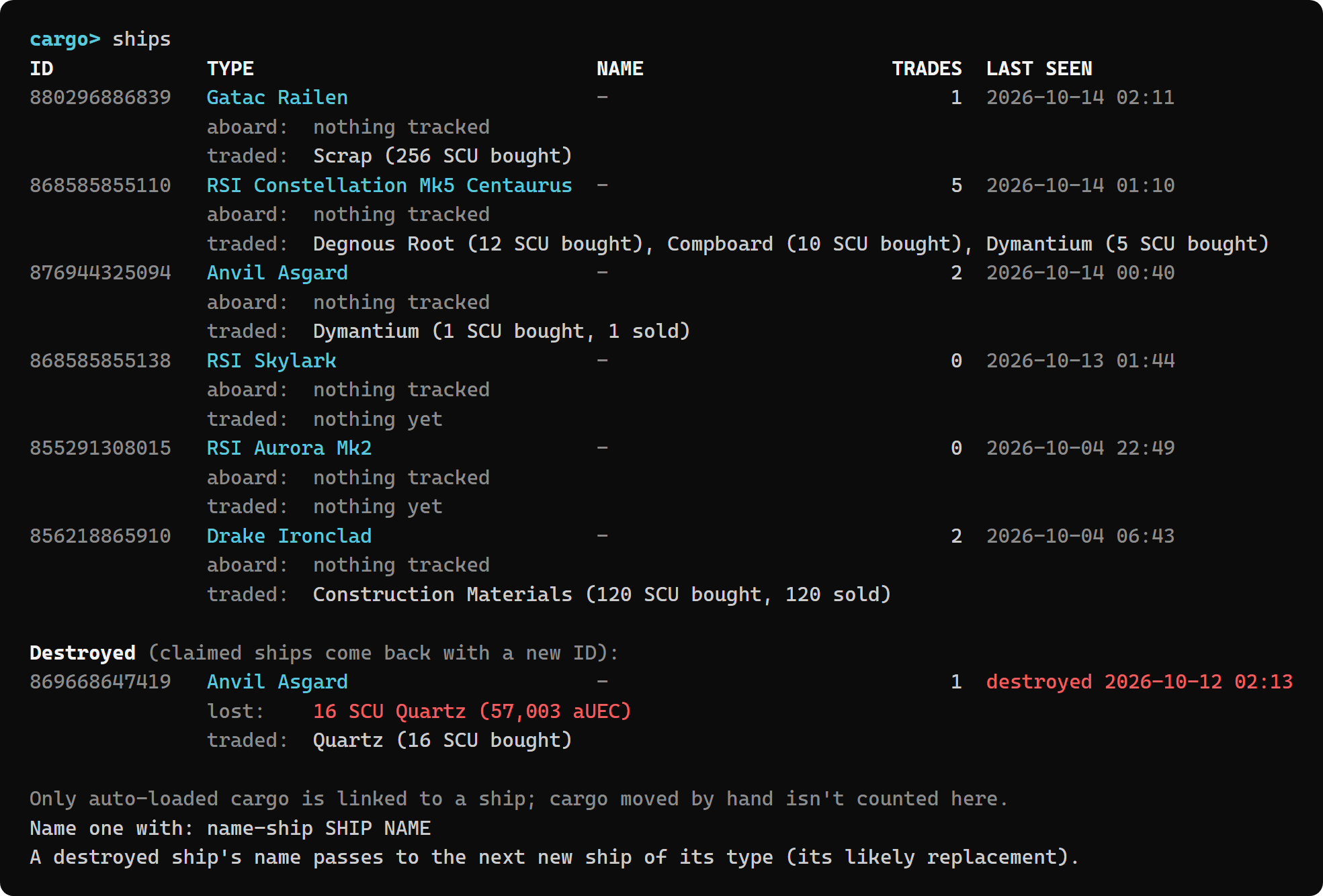
    At the cargo> prompt, try profit, history, ships or routes. Type help to see every command.

  4. Optional: turn on the overlay

    Type overlay on. To see it over the game, set Star Citizen's Graphics → Window Mode to Borderless.

    On Linux the overlay is best-effort: it usually works on X11, but on Wayland it may not stay above the game or in the corner.

  5. Optional: load earlier sessions

    Type import once to read trades from your previous play sessions, which the game keeps in its log backups.

Check your download (optional) The SHA-256 fingerprint of each download is shown on its GitHub release page. On Windows, run Get-FileHash .\star-cargo-tracker.exe in PowerShell; on Linux, run sha256sum star-cargo-tracker-linux-x86_64.tar.gz. Run it in the folder you saved the file to; the result should match.

Profit, routes and ships

A few of the commands you can run while you play.

Common questions

Is it safe to use with Easy Anti-Cheat?

The tracker only reads Game.log, the plain-text log the game writes for itself. It never touches the game's memory or files and never sends anything to the game. The overlay is a separate window drawn on top of the game, not inside it.

Does it need an internet connection?

No. Tracking and profit work entirely offline. The internet is only used to look up commodity names and UEX market prices, and both are saved so they're not fetched again each time.

Where is my data kept?

In a single file on your PC: %APPDATA%\star-cargo-tracker\trades.db on Windows, or ~/.local/share/star-cargo-tracker/trades.db on Linux. Nothing is uploaded unless you choose to sync with your UEX account.

How do I update to a new version?

Download the new version and replace the old program with it. Your trades and settings are kept, because they're stored separately from the program.

How do I remove it?

Delete the program. To remove your trade history too, delete the %APPDATA%\star-cargo-tracker folder on Windows, or ~/.local/share/star-cargo-tracker on Linux.

Why doesn't the overlay show over the game?

Windows can't draw anything over a game in exclusive fullscreen. Set Star Citizen's Graphics → Window Mode to Borderless and the overlay will appear in the top-right corner of the screen the game is on.

On Linux, the overlay usually works on X11. Wayland doesn't let apps choose where their windows go or keep themselves above a fullscreen game, so there it may appear elsewhere or behind the game.

Found a bug or have an idea?

Open an issue on GitHub. If trades stop being recorded after a game patch, the log format has probably changed, and an issue with a few lines from your Game.log helps a lot.